Packages & the Package Manager
A package is a versioned, self-contained folder of assets and scripts that can be shared between projects and between people: a dialogue system, a shader collection, a set of tilesets, a whole toolkit. Comet's Package Manager installs them from the Comet Marketplace, from git repositories, from folders on your disk or from .cometpkg archives — resolves their dependencies, keeps them updated, and helps you create, version and publish your own.
This tutorial covers the whole system: the Package Manager window, every way to install and remove packages, how dependency resolution and version locking work, how to create a package of your own, every file a package contains and every field of those files, and how to export and publish to the Marketplace.
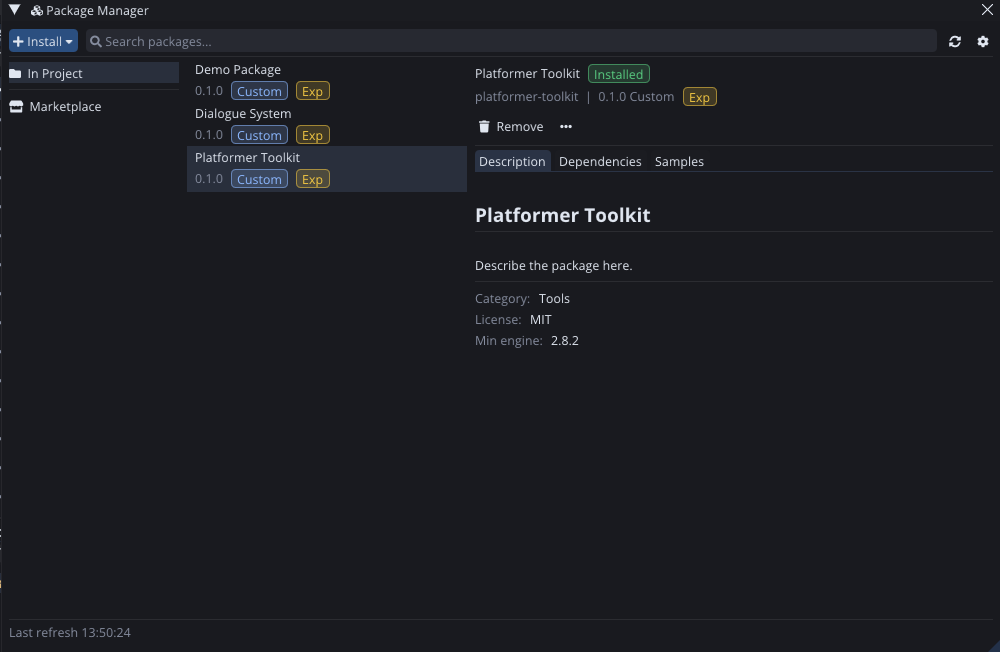
What a package is
On disk, a package is simply a folder with a package.cometPackage manifest at its root. The manifest gives it an identity (a slug like platformer-toolkit), a semantic version like 1.2.0, presentation metadata, and declarations for everything it ships: dependencies and importable samples.
There are two package types:
package— the normal kind. It installs underPackages/<slug>/in your project and is treated as read-only: the editor won't let you accidentally modify a library you'd lose changes to on the next update.assetPack— a one-time content import (sprite packs, audio bundles). Its files land inAssets/<slug>/as ordinary editable assets, and the Package Manager doesn't manage them afterwards — there is nothing to update or resolve.
A package in your project has an origin, shown as a chip next to its version in the list:
| Chip | Origin | Meaning |
|---|---|---|
Registry |
Comet Marketplace | Downloaded from a registry, verified by hash, updatable. |
Git |
Git repository | Fetched from a git URL, locked to a commit. |
Local |
Local folder | Live-linked to a folder on your disk (see From a local folder). |
Archive |
.cometpkg file |
Installed from an archive on disk. |
Custom |
Embedded | Lives in your project as editable source — this is your package (or one you chose to take ownership of). |
Everything except Custom is installed (read-only, reproducible from the lock file). Custom packages are embedded: the folder under Packages/ is the source, you edit it directly, and it's how you develop packages of your own.
A second set of chips marks the release channel of a version: Exp (experimental — any 0.x version, or a pre-release tag starting with exp), Pre (any other pre-release tag such as -pre.1 or -rc.2), and Deprecated for versions their author has withdrawn. Plain releases get no chip.
The Package Manager window
Open it from Window ▸ Package Manager. It has four areas:
The toolbar. The + Install button opens a menu with every install source — Install from disk…, Install from folder…, Install from git URL…, Install by name… — plus Create package…, which opens the Create Package wizard. Next to it: a refresh button, the name of the current view, a search field that filters the list, and a gear menu with Package settings…, Resolve now, a Show pre-release versions toggle and Open manifest.
The navigation column. In Project lists everything in your project. When updates are available an Updates entry appears with a count; when something is wrong an Errors entry appears. Marketplace browses the online registry.
The package list. Each row shows the display name, the installed (or latest) version, and its chips — origin, channel, a blue ↑ when an update is available, and an AssetPack marker in the Marketplace view.
The details pane. The selected package's header (name, slug, version, origin), its action buttons, and tabs:
- Description — the package's markdown description, followed by its category, tags, license, minimum engine version, download count (Marketplace) and links (Documentation / Changelog / Homepage / Repository).
- Versions — the registry version history (see Choosing versions).
- Dependencies — what this package depends on (click through to each dependency, with the range and the version it resolved to) and what it is used by in your project.
- Samples — the package's importable samples, if it ships any.
- Images — screenshots, for Marketplace packages that provide them.
A status bar at the bottom shows the last registry refresh and what the manager is currently doing.
Installing packages
From the Marketplace
Select Marketplace in the navigation, browse or search, select a package and press Install. The latest published release is downloaded into the machine-wide package cache, its integrity hash is verified, and it's installed read-only under Packages/<slug>/. Your project manifest records the dependency and the lock records exactly what was installed.
If the package needs a newer engine than you're running, the Install button is disabled and a tooltip tells you the required version.
Choosing versions, updating, downgrading
The Versions tab lists a registry package's history, newest first, with each version's channel chips, publish date, download count and an expandable changelog. Each entry has a context-sensitive button: Install if you have none, Update for newer versions, Downgrade for older ones. The currently installed version is marked ✓ Current.
Two visibility rules keep unstable versions out of the way:
- Pre-release versions (
Pre) are hidden unless you enable Show pre-release versions in the gear menu (the setting is saved per project). - Experimental versions (
Exp) are never offered from the Versions tab — you only see one if it's what you already have installed. To install one deliberately, use Install by name… with the exact version.
From a .cometpkg on disk
+ Install ▸ Install from disk… installs a .cometpkg (or plain .zip) archive someone sent you or that you exported yourself. Installing an archive for a slug you already have replaces it — that's how you hand-update an archive-sourced package.
From a local folder
+ Install ▸ Install from folder… points at any folder containing a package.cometPackage — typically a package you're developing in a separate repository and want to use in several projects at once.
The folder is live-linked: it's mirrored read-only into Packages/<slug>/, and a file watcher re-syncs the mirror whenever you edit the source folder. The dependency is recorded as a file: path (relative to the project root when possible), so teammates who have the folder in the same relative place get the same link.
[!NOTE] If a live-linked folder contains an asset whose ID collides with one already in your project, the install fails with an error instead of silently remapping — fix the ID in the source folder, since remapping a mirror would be undone by the next sync. (Registry and archive installs do remap colliding IDs automatically and record the remap in the lock.)
From a git repository
+ Install ▸ Install from git URL… fetches a package straight from a repository. The URL accepts two optional extras:
https://github.com/acme/comet-packages.git?path=/dialogue-system#v1.2.0
?path=— the folder inside the repository that contains the package (for monorepos).#— a branch, tag or commit. Without it, the default branch is used.
The lock records the resolved commit, so a teammate cloning your project reinstalls the identical snapshot — served from the cache, even offline. Re-running the same install re-resolves the branch or tag, which is how you pull updates from a git dependency.
Git installs shell out to the git executable on your PATH; you can point the engine at a specific one in Preferences ▸ Package Manager.
By name
+ Install ▸ Install by name… takes a slug and an optional exact version — the quickest route when you know precisely what you want (platformer-toolkit, 2.0.0-pre.1), and the only route to an experimental version.
The plan preview
Whenever an operation would touch more than the package you asked for — dependencies that need installing, other packages that need to move versions, orphans that would be removed — the manager doesn't just do it. A plan preview popup lists every action first ("Will also install platformer-toolkit-core 2.1.0"), and nothing happens until you confirm.
Updating and removing
When a registry package has a newer visible version, an ↑ chip appears in the list, the Updates view collects everything updatable, and the details pane grows an Update to x.y.z button. Updates run through the same resolution and plan preview as installs.
Remove uninstalls a package: its files, its loaded resources, and its manifest and lock entries. Two safety nets apply:
- If other packages depend on it, Remove is disabled — the tooltip and the Dependencies tab list what still uses it. Remove the dependents first (or rely on orphan cleanup: a package that was only installed to satisfy a dependency is offered for removal in the plan once nothing needs it).
- Removing an embedded package gets a stronger confirmation: its folder is the source, not a cache copy, so deleting it cannot be undone by reinstalling. Export an archive first if you want a backup.
Resolve now (gear menu) re-runs the resolver over the whole project — useful after editing the manifest by hand or changing resolver settings. If everything is consistent it tells you so; otherwise you get a plan preview with the corrections.
Embedding: making a package yours
Embed (shown for any installed, non-embedded package) converts it into an embedded one: the folder stays exactly where it is under Packages/<slug>/, the manifest dependency and lock entries are dropped, and the origin chip flips to Custom. From that moment the package is ordinary editable source in your project — the standard way to fork a package you need to modify.
The reverse trip is the package development loop: embed (or create) a package, edit it, bump its version, export and publish it, and other projects install the new release.
Creating a package
+ Install ▸ Create package… opens the wizard:
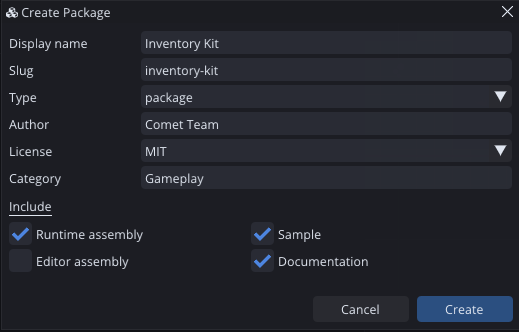
- Display name — the human-readable name (3–80 characters). The slug is derived from it as you type.
- Slug — the package's unique identifier, folder name and future registry name: lowercase alphanumeric words separated by single dashes (
dialogue-system). Validated live; you can edit it by hand. - Type —
packageorassetPack. - Author, License (a set of common SPDX licenses, or "See LICENSE.md"), Category.
- Include — optional skeleton parts: a runtime script assembly, an editor-only assembly, a starter sample, and a documentation folder.
Create generates Packages/<slug>/ with a complete, valid skeleton — manifest at version 0.1.0, README.md, a Keep a Changelog-style CHANGELOG.md, LICENSE.md, the assemblies you ticked and a namespaced example script — and the package appears immediately in the In Project list as an embedded Custom package, ready to edit.
Anatomy of a package
A full-featured package looks like this:
Packages/dialogue-system/
├── package.cometPackage        ← the manifest (identity, metadata, declarations)
├── README.md                   ← what the package is; shown on the Marketplace page
├── CHANGELOG.md                ← version history (Keep a Changelog format)
├── LICENSE.md                  ← license text
├── Runtime/
│   ├── DialogueSystem.cometAssembly      ← runtime script assembly
│   ├── DialogueSystemExample.as          ← scripts, inside a namespace
│   └── DialogueSystemExample.as.meta     ← asset metadata (IDs), like any asset
├── Editor/
│   └── DialogueSystemEditor.cometAssembly ← editor-only assembly (never ships in builds)
├── Samples/                    ← hidden from the asset database until imported
│   └── Basic/
│       └── ...
└── Documentation/              ← hidden reference docs
    └── index.md
Every file, in detail:
package.cometPackage — the manifest; the only mandatory file. Full field reference below.
README.md — the long-form introduction. When you publish, the Marketplace reads it out of the archive and uses it as the store page body.
CHANGELOG.md — the version history in Keep a Changelog format: one ## [x.y.z] section per version. The exporter checks that a section exists for the version you're exporting, and the Marketplace extracts that section as the per-version changelog shown in the Versions tab.
LICENSE.md — the license text your license field points at.
Runtime/, Editor/ and .cometAssembly files — an assembly groups the scripts in its folder into one compilation unit. The .cometAssembly file itself is a small JSON ({ "Shared": false, "Platforms": -1 }) whose platform mask (-1 means every platform) you edit through its inspector — untick platforms the scripts shouldn't compile for. Assemblies under Editor/ exist only in the editor and are stripped from every exported game.
.meta files — every asset in a package carries its .meta with a stable asset ID, exactly like assets in Assets/. Stable IDs are what let scenes reference package assets across installs and updates. If an incoming package's ID collides with something already in the project, the installer remaps the copy and records the remap in the lock.
Samples/ — content users can optionally import (a demo scene, example prefabs). Samples are declared in the manifest and their folder is listed in hiddenFolders, so they don't clutter the asset database until imported. The Samples tab imports one into Assets/Samples/<package>/<version>/<sample>/ as editable copies with fresh asset IDs — safe to re-import (an existing import is replaced).
Documentation/ — reference docs, also hidden via hiddenFolders. The Description tab's Documentation button prefers the manifest's documentationUrl and falls back to this folder.
An assetPack-type package replaces Runtime/ with a Content/ folder — its assets are meant to be imported and edited, so it ships no assemblies.
package.cometPackage — every field
The manifest is JSON (comments are tolerated when read). A complete example:
{
    "schemaVersion": 1,
    "slug": "dialogue-system",
    "displayName": "Dialogue System",
    "version": "1.2.0",
    "packageType": "package",
    "summary": "Branching dialogue trees with a node editor and localization hooks.",
    "description": "# Dialogue System\n\nEverything you need for branching conversations...",
    "author": {
        "name": "Comet Team",
        "email": "team@example.com",
        "url": "https://example.com"
    },
    "license": "MIT",
    "category": "Tools",
    "tags": ["dialogue", "narrative", "ui"],
    "homepageUrl": "https://example.com/dialogue",
    "repoUrl": "https://github.com/acme/dialogue-system",
    "documentationUrl": "https://example.com/dialogue/docs",
    "changelogUrl": "",
    "minEngineVersion": "2.8.2",
    "dependencies": {
        "ui-extensions": "^1.0.0"
    },
    "samples": [
        {
            "displayName": "Basic",
            "description": "A minimal conversation wired to a UI canvas.",
            "path": "Samples/Basic"
        }
    ],
    "hiddenFolders": ["Samples", "Documentation"],
    "hideInEditor": false
}
| Field | Type | Meaning |
|---|---|---|
schemaVersion |
int | Manifest format version. Currently 1. |
slug |
string | Required. Unique identifier, folder name and registry name: lowercase alphanumeric groups separated by single dashes, 1–100 characters. Must match the folder it lives in. |
displayName |
string | Required. UI name, 3–80 characters. |
version |
string | Required. Strict semver 2.0.0: major.minor.patch, optional -prerelease and +build. No partial versions, no leading zeros. Determines the release channel (see version channels). |
packageType |
string | "package" (default) or "assetPack". |
summary |
string | Required. One-liner for registry cards, 10–160 characters. |
description |
string | Long markdown description; rendered in the Description tab and on the store page. |
author |
object | name, email (optional), url (optional). |
license |
string | SPDX identifier (MIT, Apache-2.0, …) or a pointer like "See LICENSE.md". |
category |
string | Registry category (Tools, UI, Art, …). |
tags |
string[] | Search and browse tags. |
homepageUrl |
string | Project homepage (optional). |
repoUrl |
string | Source repository (optional). |
documentationUrl |
string | External docs; the editor falls back to the in-package Documentation/ folder. |
changelogUrl |
string | External changelog; falls back to the in-package CHANGELOG.md. |
minEngineVersion |
string | Lowest engine version the package works with (semver, optional). Older engines refuse to install it, and a project containing it won't build on an older engine. |
dependencies |
object | Direct dependencies: { "slug": "range" }. See version ranges. |
samples |
array | Importable samples: displayName, description, path (usually under Samples/). |
hiddenFolders |
string[] | Package-root folders excluded from the asset database (samples, documentation). |
hideInEditor |
bool | Hides the package's assets from object pickers — a helper for asset packs. |
All content paths are validated: relative, forward slashes, no .. or absolute segments — a manifest can never point outside its package.
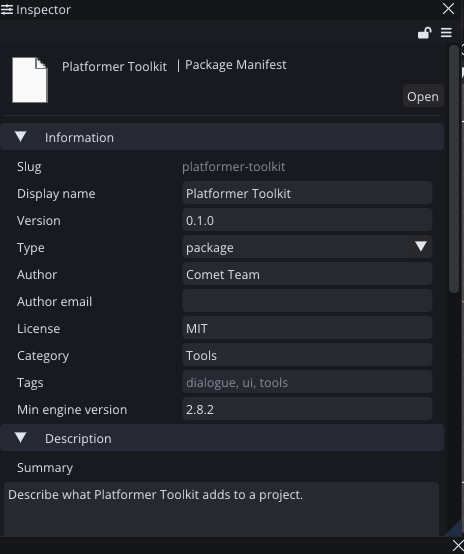
You rarely edit this JSON by hand: selecting a package.cometPackage in the Project panel shows the manifest inspector, a form with sections for information, description, dependencies and samples, with Apply / Revert buttons and validation as you type.
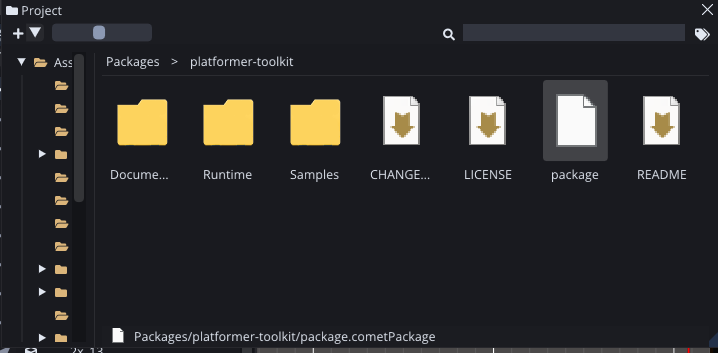
Packages live in their own Packages section of the Project panel, right below Assets:
Script namespaces
Scripts inside a package should live in a namespace named after it, and the wizard's example script shows the pattern:
namespace DialogueSystem
{
    class DialogueRunner : CometBehaviour
    {
        void Update()
        {
        }
    }
}
Namespaces are what keep two packages (and your project) from colliding when they both define an Enemy or a Utils class. Game code refers to package types as DialogueSystem::DialogueRunner, or shortens it with using namespace DialogueSystem;. The exporter warns about package scripts that declare types in the global namespace.
The project manifest — Packages/manifest.cometManifest
Your project's side of the system is one file: Packages/manifest.cometManifest. It records what the project depends on, where to resolve it from, how the resolver should behave, and — in the lock — exactly what ended up installed. The Package Manager maintains it as you install and remove; the settings popup edits its knobs; you can also edit it by hand and hit Resolve now.
{
    "schemaVersion": 1,
    "dependencies": {
        "dialogue-system": "^1.2.0",
        "shared-tools": "file:../shared/shared-tools",
        "experimental-fx": "https://github.com/acme/fx.git?path=/fx#main"
    },
    "registries": [
        {
            "name": "Comet Marketplace",
            "url": "https://wahwdszfywobmyyuyihu.supabase.co",
            "scopes": ["*"]
        }
    ],
    "resolutionStrategy": "lowest",
    "enableLock": true,
    "showPreRelease": false,
    "pinned": [],
    "lock": {
        "dialogue-system": {
            "version": "1.2.0",
            "depth": 0,
            "source": "registry",
            "registryUrl": "https://wahwdszfywobmyyuyihu.supabase.co",
            "sha256": "9f2c8a…",
            "dependencies": { "ui-extensions": "^1.0.0" }
        },
        "ui-extensions": {
            "version": "1.0.3",
            "depth": 1,
            "source": "registry",
            "registryUrl": "https://wahwdszfywobmyyuyihu.supabase.co",
            "sha256": "41bd07…"
        }
    }
}
| Field | Type | Meaning |
|---|---|---|
schemaVersion |
int | Manifest format version. Currently 1. |
dependencies |
object | The project's direct dependencies: { "slug": "spec" }. A spec is a version range ("^1.2.0"), a local path ("file:../shared/pkg") or a git URL ("https://….git?path=…#ref") — the form decides the source. |
registries |
array | Registries to resolve versioned dependencies against, in priority order. Each has a name, a base url and scopes — slug patterns it serves ("*" for everything; scope a company registry to "acme-*" to keep your internal packages off the public one). New projects are seeded with the official Comet Marketplace. |
resolutionStrategy |
string | How far the resolver escalates indirect dependency versions inside their allowed ranges: "lowest" (default), "highestPatch", "highestMinor" or "highest". |
enableLock |
bool | Whether the resolver records resolved versions and prefers them on the next resolve. On by default. |
pinned |
string[] | Slugs locked to exactly the version written in their dependency spec — the resolver will never move them. |
showPreRelease |
bool | Whether pre-release versions are offered in this project (the gear-menu toggle writes this). |
lock |
object | The resolved package set, maintained by the engine — one entry per installed package. |
Each lock entry records everything needed to reproduce the install:
| Field | Meaning |
|---|---|
version |
The resolved version. |
depth |
Dependency depth: 0 for direct project dependencies, 1+ for transitive ones. |
source |
Where it came from: "registry", "git", "local" or "archive". |
registryUrl |
The registry it was downloaded from (registry source). |
sha256 |
Integrity hash of the downloaded archive (registry/archive sources) — verified against the cache on reinstall. |
commit |
The resolved commit (git source) — a fresh clone reinstalls this exact snapshot. |
url |
The original URL or path it was fetched from (git/local/archive sources). |
dependencies |
That package's own dependencies at the resolved version, so the resolver works offline. |
idRemaps |
Asset-ID remaps applied at install time to fix collisions, replayed on reinstall. |
[!TIP] Commit
Packages/manifest.cometManifestto version control and don't commit installed package folders. A teammate opening the project gets the identical package set re-installed from the lock — same versions, same commits, same hashes, same ID remaps. (Embedded packages are your source code: those you do commit.)
A missing manifest is fine — defaults with the official registry are used. A corrupt one is an error the manager reports rather than silently overwriting.
How versions resolve
Version ranges
Dependency ranges use npm-style operators:
| Range | Accepts |
|---|---|
1.2.3 or =1.2.3 |
Exactly 1.2.3. |
^1.2.3 |
>=1.2.3 and <2.0.0 — up to the next breaking version. The leftmost non-zero part is the boundary, so ^0.2.1 means <0.3.0. |
~1.2.3 |
>=1.2.3 and <1.3.0 — patch-level updates only. |
>=1.2.3 |
Anything from 1.2.3 up. |
Caret, tilde and minimum accept partial versions (^1.2, ~1, >=2). Pre-release versions only satisfy a range whose own base carries a pre-release tag on the same major.minor.patch (^1.3.0-pre.1 accepts 1.3.0-pre.2; plain ^1.2.0 never picks a pre-release) — the npm rule, so unstable versions are never chosen by accident.
Release channels
The channel is derived from the version string itself:
- Release — a normal
x.y.zwith major ≥ 1. - Pre-release (
Pre) — any pre-release tag except experimental ones:1.3.0-pre.1,2.0.0-rc.2. Hidden unless Show pre-release versions is on. - Experimental (
Exp) — any0.xversion, or a pre-release tag starting withexp(1.0.0-exp.3). Never offered in the Versions tab; installable only explicitly, by name.
The resolver
Whenever the package set changes, the resolver computes one consistent set of versions satisfying every range — yours and every package's. It works conservatively: it starts from the locked (or lowest allowed) versions and escalates only as far as your resolutionStrategy permits and constraints require. With the default "lowest" strategy and the lock enabled, resolution is fully deterministic and never surprises you with an unrequested upgrade; set "highestPatch" or "highestMinor" if you'd rather pick up fixes automatically.
When ranges genuinely conflict (one package needs ^1.0.0, another ^2.0.0 of the same dependency), the resolve fails with a clear error naming the packages and ranges involved — it appears in the Errors view with Resolve now, Open manifest and Clear errors actions next to the details. Fix it by updating the offending packages, widening a range you control, or pinning a version everyone accepts.
The cache and working offline
Every downloaded archive and git checkout lands in a machine-wide cache, keyed by content hash — installing the same package into five projects downloads it once. Reinstalls from the lock are served from the cache even with no network, and when the registry is unreachable the Marketplace view falls back to the last cached catalog and marks itself offline. Preferences ▸ Package Manager shows the cache location and usage, lets you move it, and can clear it (it's safe to clear — anything needed is re-downloaded).
Exporting and publishing
When your embedded package is ready to share, select it and choose ⋯ ▸ Export package…. The manager validates it and shows a report:
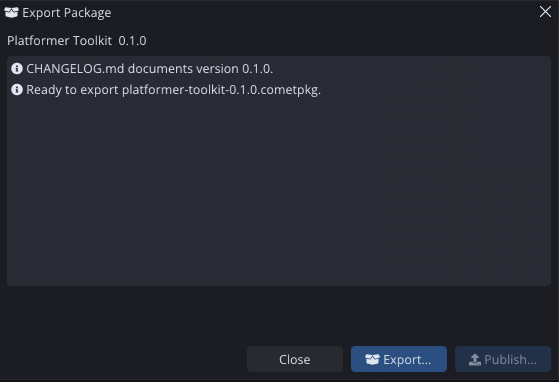
The validation checks, in plain terms:
- The manifest parses, passes every semantic check, and its
slugmatches the folder name. CHANGELOG.mddocuments the version being exported.- Every declared assembly, sample and hidden folder actually exists.
- Declared dependencies are resolvable on the registry (so consumers won't hit a dead end).
- Package scripts don't declare types in the global namespace (a warning).
- Self-containment: every asset reference must stay inside the package or point into another package. References into other packages become auto-detected dependencies — the exporter adds them to the staged manifest and tells you. References into your project's
Assets/are a hard failure: the package would break in any other project. Move those assets into the package (or cut the reference) and validate again. - The archive stays under the registry's 25 MB cap.
Failures block the export; warnings don't. Export… writes a <slug>-<version>.cometpkg archive and shows its sha256 (copy button included) — that archive is directly installable via Install from disk… and is what you upload to the Marketplace.
Publishing on the Marketplace
Publish… takes you to cometengine.org/account. Sign in, click Upload New Package, and drop the .cometpkg on the upload zone. The site reads the manifest from inside the archive — there is no metadata form to fill twice: it validates the manifest, checks the slug is free (or yours), extracts your README.md for the store page and the right CHANGELOG.md section for the version, shows you a review of exactly what will be published, and publishes on confirm.
Publishing a new version of your package is the same flow — bump version in the manifest, export, drop the new archive. Versions are immutable once published; fix mistakes by publishing a newer version, or mark a bad version (or the whole package) deprecated with a message from your account's package management page, which shows the warning to would-be installers without breaking existing projects. Presentation extras — icon, screenshots, links — are edited on the package's page; download statistics appear on your dashboard.
[!NOTE] The store page, search card and Versions tab all come from the archive you upload:
summaryis the card text,description/README the page body,categoryandtagsdrive search, andminEngineVersiongates installs. Well-filled manifests are what make a package findable.
The build gate
A project won't export a game build while its packages are in a bad state — the manifest doesn't parse, a dependency or lock entry has no package on disk, or an installed package needs a newer engine. The build fails immediately with the same message the Errors view shows, instead of producing a broken game.
Package settings & preferences
The gear menu's Package settings… opens the Packages page of Project Settings, which edits this project's manifest.cometManifest knobs:
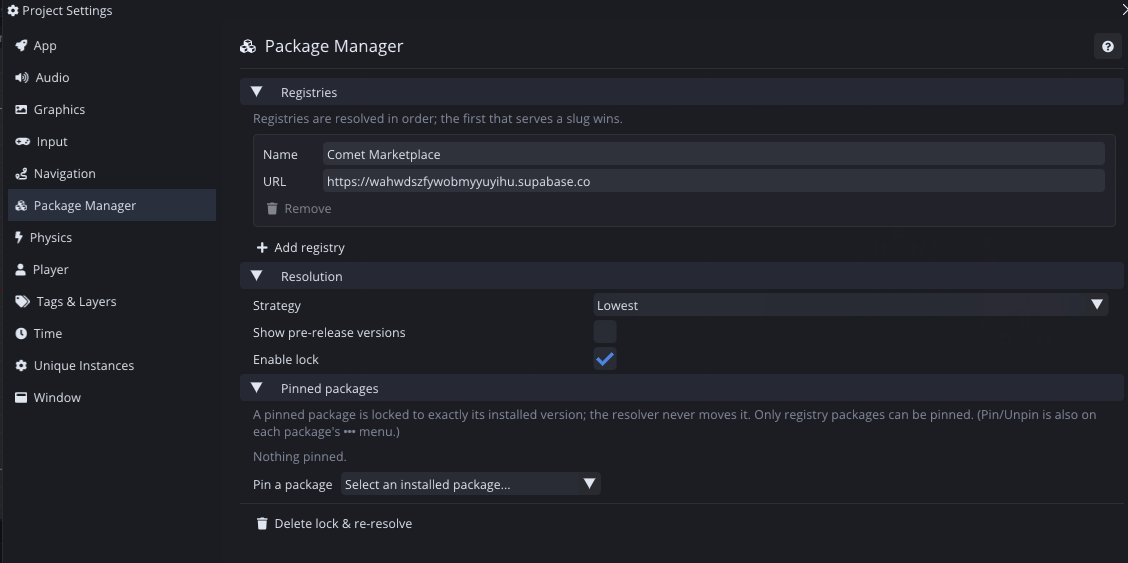
- Registries — add, remove and reorder registries (with their scopes). Priority order decides who serves a slug both registries claim.
- Resolution ▸ Strategy — the resolver escalation policy described above.
- Show pre-release versions and Enable lock toggles.
- Pinned packages — the pin list.
- Delete lock & re-resolve — throws away the lock and resolves the whole project from scratch: the recovery hammer for a tangled state.
Machine-wide options live in Preferences ▸ Package Manager: the cache location (with open/clear actions and current usage) and the git executable used for git dependencies.
Automating packages
Everything the window does is scriptable from editor scripts through the CometEditor::Packages namespace:
using namespace CometEditor;

array<string> installed = Packages::List();
if (!Packages::IsInstalled("dialogue-system"))
    Packages::Install("dialogue-system");          // latest; or ("slug", "1.2.0")

Packages::InstallFromPath("C:/downloads/pkg.cometpkg");  // archive or folder
Packages::Remove("old-package");
Packages::Embed("dialogue-system");                // installed → embedded
Packages::Pack("my-package", "C:/out/my-package-0.1.0.cometpkg");
Packages::Resolve();                               // re-run the resolver
string infoJson = Packages::GetInfo("dialogue-system");
GetInfo returns the package's state as JSON (version, origin, dependencies…), and Packages::GetOnPackagesChanged() returns a delegate you can subscribe to for reacting whenever the package set changes.
The same operations are exposed as editor MCP tools (package_list, package_install, package_remove, package_create_skeleton, package_export, and package_ui for driving the window itself), so AI assistants and external tooling can manage packages too.
Troubleshooting
| Symptom | What it means / what to do |
|---|---|
| "The registry could not be reached" | You're offline or the registry is down. The Marketplace serves the cached catalog; installs from the lock still work from the cache. Retry from the list. |
| Git install fails | Check the URL, the #ref, and that git is installed — or set the executable in Preferences ▸ Package Manager. Private repositories need your git credential helper configured. |
| Version conflict in the Errors view | Two ranges can't agree. Update the packages involved, widen a range you control, pin an acceptable version, or as a last resort Delete lock & re-resolve. |
| Install button disabled, "Needs engine x.y.z or newer" | The package's minEngineVersion is above your engine. Update the engine or install an older version from the Versions tab. |
| Remove is greyed out | Something depends on it — the tooltip and the Dependencies tab's Used by list say what. Remove the dependents first. |
| Local-folder install reports an ID collision | An asset in the source folder shares an ID with one in your project. Fix the ID at the source; live-linked mirrors are never remapped. |
| Export fails with "not self-contained" | The package references assets in Assets/. Move them into the package, or remove the reference. References into other packages are fine — they become dependencies automatically. |
| Build blocked by packages | The build gate found broken package state. Open Window ▸ Package Manager ▸ Errors, fix what it lists, build again. |
| A package's files look wrong after an update | Reinstall it: remove and install again, or Delete lock & re-resolve. Installed packages are reproducible from the lock; never edit them in place — embed instead. |
That's the whole system: install what others built, keep it resolved and locked, and when you build something reusable — wrap it in a manifest, export it, and put it on the Marketplace for everyone.