Building User Interfaces
Menus, HUDs, dialogs, settings screens — Comet's UI system is a retained, anchor-based layout system in the spirit of Unity's uGUI: a Canvas at the root, RectTransform on every element, and a family of widgets (Button, Text, Image, InputField, Slider...) that raise events your scripts react to.
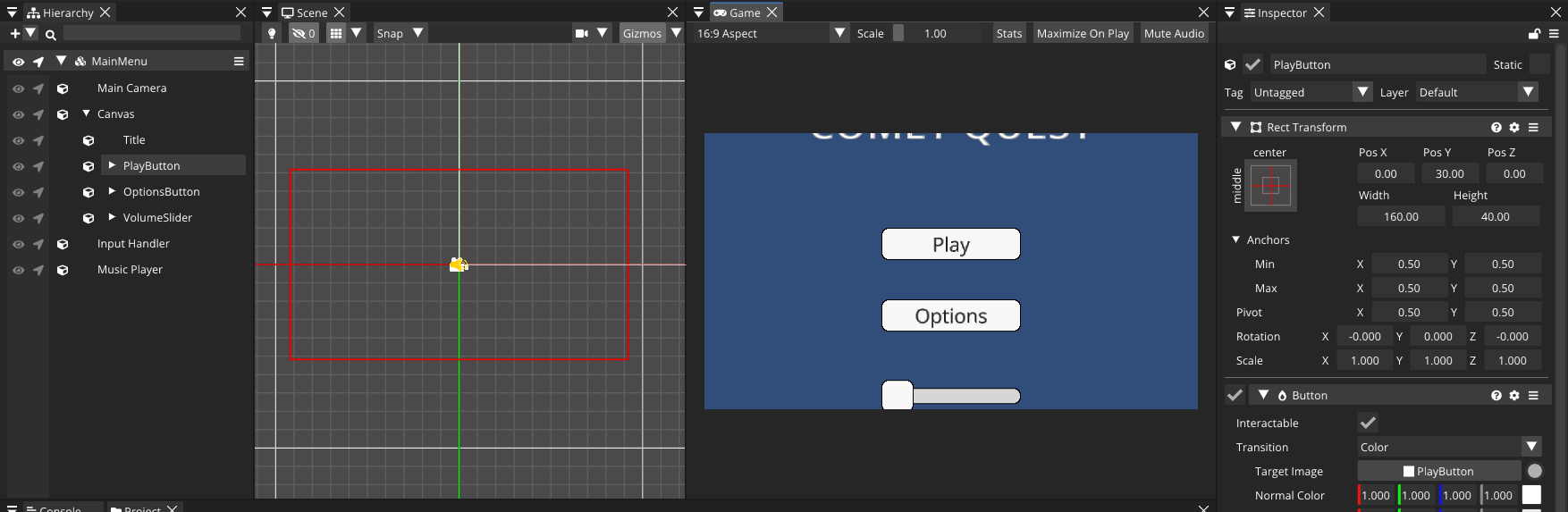
The Canvas
Every piece of UI lives under a Canvas entity (right-click the Hierarchy → UI → Canvas). Its Render Mode decides where the UI exists:
- Screen Space — the canvas is glued to the screen. Menus, HUDs, anything resolution-anchored.
- World Space — the canvas lives in the world like any other entity. Health bars over enemies, computer screens inside the scene, damage numbers.
Canvases can be nested; a nested canvas can overrideSorting to force itself above or below its surroundings.
RectTransform: anchors, pivot and size
UI entities replace the plain Transform with a RectTransform — a rectangle whose position and size are expressed relative to the parent rectangle through anchors:
anchorMin/anchorMax— two normalized points (0–1) in the parent. When both are equal you get a fixed-size element pinned to that point; when they differ, the element stretches with the parent.pivot— the point of the element (0–1) thatanchoredPositionpositions, and the center of rotation/scaling.anchoredPosition+size— where the pivot sits relative to the anchors, and how big the rect is.- When stretched, you edit the margins instead:
leftDistance,rightDistance,topDistance,bottomDistance.
The Inspector's anchor preset widget covers the common cases in one click — corners, edges, center, and full-stretch. Rules of thumb:
[!TIP] Anchor each element to the screen region it belongs to: score to the top-left, minimap to the top-right, action bar stretched along the bottom. The layout then survives every aspect ratio without a single line of code.
From script, the same properties are read/write:
using namespace CometEngine;

class HealthBarFill : CometBehaviour
{
    private RectTransform rect;
    private float fullWidth;

    void Start()
    {
        rect = RectTransform::Get(entity);
        fullWidth = rect.size.x;
    }

    void SetHealth(float normalized) // 0..1
    {
        rect.size = Vector2(fullWidth * normalized, rect.size.y);
    }
}
The widget family
All widgets live in the CometEngine::UI namespace and are created from the Hierarchy's UI submenu. The visual ones derive from Graphic (which gives them color, material and a mouseFilter); the interactive ones derive from Selectable (which adds interactable, hover/press transitions, and keyboard/gamepad navigation):
| Widget | Purpose | Key members |
|---|---|---|
Text |
Styled text, BBCode, auto-sizing | text, font, fontSize, horizontalAlignment, bbcodeEnabled, bold... |
Image |
Sprite display, 9-slice, tiling | sprite, renderMode (Simple/Sliced/Tiled), fillCenter |
Button |
Click target | onClick, interactable |
InputField |
Text entry | textValue, characterLimit, contentType, onValueChanged, onEndEdit |
Slider |
Draggable value | value, minValue, maxValue, wholeNumbers, onValueChanged |
Toggle |
Checkbox | isOn, group, onValueChanged |
ToggleGroup |
Radio-button behaviour for Toggles | allowSwitchOff |
DropDown |
Option list | value, AddOption(), SetOptions(), onValueChanged |
ScrollRect |
Scrollable content | content, horizontal, vertical, movementType, inertia |
Scrollbar |
Standalone scroll handle | value, size, direction |
Reacting to input
There are two complementary mechanisms.
1. Pointer interfaces — any entity, any shape
Implement one or more pointer interfaces on a CometBehaviour and the UI input system calls you directly. This is the pattern used across Comet's own sample project:
using namespace CometEngine;
using namespace CometEngine::UI;

class PlayButton : CometBehaviour, IPointerClickAction
{
    void OnPointerClick(PointerEvent pointerEvent)
    {
        Debug::Log("Play clicked!");
        SceneManagement::SceneManager::LoadScene("Level1");
    }
}
The full set: IPointerClickAction, IPointerDownAction, IPointerUpAction, IPointerUpOutsideAction, IPointerEnterAction, IPointerExitAction, IBeginDragAction, IDragAction, IEndDragAction, ISelectAction, IDeselectAction, ISubmitAction. Drag-and-drop, for instance, is three methods:
class DraggableCard : CometBehaviour, IBeginDragAction, IDragAction, IEndDragAction
{
    void OnBeginDrag(PointerEvent event) { Debug::Log("BEGIN DRAG"); }
    void OnDrag(PointerEvent event)      { Debug::Log(event.handler.entity.name); }
    void OnEndDrag(PointerEvent event)   { Debug::Log("END DRAG"); }
}
2. Widget events — values, not clicks
Value widgets expose typed events (CometEvent / CometEventArg<T>). Hook persistent listeners in the Inspector (the button's On Click list), or subscribe at runtime:
using namespace CometEngine;
using namespace CometEngine::UI;

class SettingsMenu : CometBehaviour
{
    private Slider volumeSlider;

    void Start()
    {
        volumeSlider = Slider::Get(Entity::Find("VolumeSlider"));
        volumeSlider.minValue = 0.0F;
        volumeSlider.maxValue = 1.0F;
    }

    void Update()
    {
        // Polling the value each frame is the simplest reliable pattern.
        AudioSystem::SetMasterVolume(volumeSlider.value);
    }
}
Real patterns from the sample project
Reading an InputField (the multiplayer menu reads the server IP this way):
string ReadIp()
{
    Entity ipEntity = Entity::Find("IpInput");
    if (ipEntity !is null)
    {
        InputField field = InputField::Get(ipEntity);
        if (field !is null && field.textValue.length() > 0)
        {
            return field.textValue;
        }
    }
    return "127.0.0.1";
}
Filling a DropDown with the available screen resolutions:
using namespace CometEngine;
using namespace CometEngine::UI;

class ResolutionPicker : CometBehaviour
{
    private DropDown dropDown;

    void Start()
    {
        dropDown = DropDown::Get(entity);

        array<Resolution> resolutions = Window::GetAvailableResolutions();
        array<DropDownOption> options;
        for (uint i = 0; i < resolutions.length(); i++)
        {
            DropDownOption option;
            option.name = resolutions[i].ToString();
            options.insertLast(option);
        }
        dropDown.SetOptions(options);
    }
}
Updating a Text label at runtime:
void IncreaseCount()
{
    Entity ent = Entity::Find("TextClickCounter");
    if (ent !is null)
    {
        UI::Text text = UI::Text::Get(ent);
        if (text !is null)
        {
            int count = parseInt(text.text);
            ++count;
            text.text = formatInt(count);
        }
    }
}
Rich text with BBCode
Set bbcodeEnabled on a Text and you can mix styling inline — and even register custom tags that scripts animate:
using namespace CometEngine;
using namespace CometEngine::UI;

class FancyTitle : CometBehaviour
{
    void Start()
    {
        Text text = Text::Get(entity);
        text.bbcodeEnabled = true;
        text.RegisterBBCodeHandler("rainbow", BBCodeHandlerDelegate(RainbowTag));
        text.text = "Welcome to [rainbow]Comet Engine[/rainbow]!";
    }

    void RainbowTag(BBCodeHandlerData data)
    {
        // Called per character inside the tag, every frame.
        float hue = data.elapsedTime * 2.0F + float(data.relativeIndex) * 0.35F;
        data.color = Color(Math::Sin(hue) * 0.5F + 0.5F,
                           Math::Sin(hue + 2.1F) * 0.5F + 0.5F,
                           Math::Sin(hue + 4.2F) * 0.5F + 0.5F,
                           1.0F);
    }
}
The handler receives the tag's parameters (GetFloat/GetString/GetInt), the character index and mutable color, offset and visible fields — enough for wave, shake and typewriter effects.
Automatic layouts
Stop positioning list items by hand — add a layout behaviour to the parent:
- VerticalLayout / HorizontalLayout — stack children with
spacingandpadding;childWidthFitMode/childHeightFitModeoptionally stretch them (FIT_PARENT,FIT_AVAILABLE). - GridLayout — fixed
cellSize+spacing, flowing byconstraint(FLEXIBLE,FIXED_COLUMNS,FIXED_ROWS) from astartCorner. - LayoutElementConstraints — per-child overrides:
minSize,preferredSize,flex, orignoreLayoutto opt out.
Combine with ScrollRect for scrollable lists: put the layout on the content rect and the ScrollRect handles clamping, elasticity and inertia. Use a Mask to clip the content to the viewport, and a CanvasGroup to fade or disable a whole subtree at once (alpha, interactable).
Fonts
Comet accepts two kinds of font, and both plug into a Text's font field:
- Vector fonts — import a
.ttfor.otfand the engine rasterizes glyphs at any size, so text stays crisp at every scale. The default for UI. - Bitmap fonts — a pre-rendered glyph atlas (a texture plus its layout), ideal for pixel-art games where you want text to scale in hard pixels rather than smooth vectors, or to match a specific retro look.
Text styling is per-widget regardless of the font kind: fontSize (or autoFontSize with min/max bounds to fit the rect), alignment, wrapping, overflowMode, plus bold, italic, underline and strikethrough.
Where to go next
Wire your new menu to actual gameplay: start a match in Networking & Multiplayer, or make the settings screen control Audio & Mixers.