Audio & Mixers
Sound sells the scene. Comet's audio stack — built on the battle-tested SoLoud engine — gives you positional 2D/3D sources, an Audio Mixer with hierarchical groups and snapshot layouts, DSP effects, and a scripting API that covers everything from "play a beep" to runtime device switching.
The three core pieces
- AudioSample — the imported sound resource (
.wav,.ogg,.mp3). - AudioSource — a behaviour that plays samples from an entity.
- AudioListener — the "ears". Add exactly one, usually on the camera. Without a listener in the scene, nothing is heard (the console warns you).
Add them from Add Behaviour → Audio → Audio Source / Audio Listener.
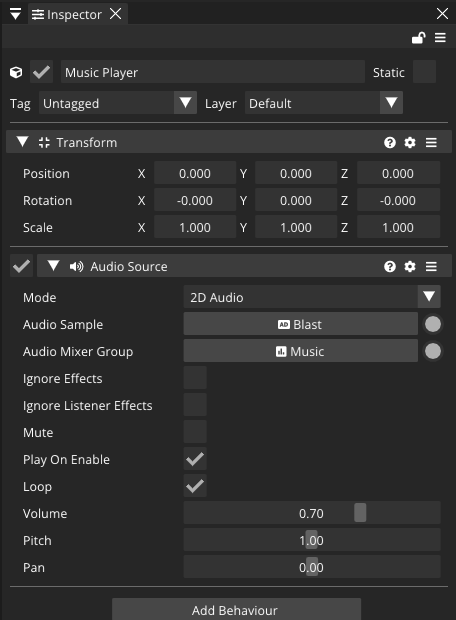
The AudioSource inspector
| Field | Meaning |
|---|---|
| Mode | 2D Audio (pan only) or 3D Audio (distance attenuation + Doppler). |
| Audio Sample | The clip to play. |
| Audio Mixer Group | Where the sound routes — see Mixers below. |
| Play On Enable | Auto-play whenever the behaviour is enabled. |
| Loop | Restart when finished. |
| Mute | Silence without stopping. |
| Volume | Linear gain 0.0 – 1.0. |
| Pitch | Playback speed 0.01 – 2.0. |
| Pan | Stereo balance -1 (left) to 1 (right) — 2D mode. |
| Min / Max Distance | 3D mode: full volume inside min, silent beyond max. |
| Ignore Effects / Ignore Listener Effects | Skip AudioEffect behaviours on this entity / on the listener. |
Import settings on the AudioSample itself: Preload Data (decode on load — snappy playback) and Is Stream (stream from disk — big music files without the memory cost).
Playing sounds from AngelScript
The bread-and-butter controls mirror the inspector:
using namespace CometEngine;

class DoorBell : CometBehaviour
{
    private AudioSource source;

    void Start()
    {
        source = AudioSource::Get(entity);
        source.volume = 0.8F;
    }

    void Update()
    {
        if (Input::GetKeyDown(KeyCode::E))
        {
            source.Play();     // also: Pause(), Resume(), Stop()
        }

        if (source.isFinished)
        {
            Debug::Log("ding done");
        }
    }
}
isPlaying, isPaused and isFinished report state; timePosition reads/writes the playhead in milliseconds; PlayOnce(sample) fires a different clip through this source's settings without replacing its assigned sample.
Fire-and-forget one-shots
For impacts, pickups and UI clicks you don't want to manage a source at all — use the static helpers:
// Play a sample globally (2D):
AudioSource::PlaySingle(explosionSample, 0.9F);

// Play at a world position (3D attenuation from that point):
AudioSource::PlaySingleAtPosition(explosionSample, transform.position, 1.0F);

// Need to control it afterwards? Use the tracked variants:
AudioSource handle = AudioSource::PlaySingleTracked(alarmSample, 1.0F);
// ... later:
handle.Stop();
Untracked one-shots clean themselves up when playback ends.
[!NOTE] Assign samples to script fields through the Inspector by declaring them, e.g.
AudioSample explosionSample;— or load them at runtime withRuntimeAssets::LoadResource("Audio/Explosion", ResourceType::AUDIO).
2D vs 3D sound
Set Mode to 3D Audio and the source attenuates linearly between Min Distance and Max Distance from the listener, pans by direction, and applies Doppler when either side moves. Three global knobs shape the whole mix:
AudioSystem::SetRolloffScale(1.5F);     // stronger distance falloff everywhere
AudioSystem::SetDopplerFactor(1.0F);    // 0 = off, 1 = realistic, >1 exaggerated
AudioSystem::SetAudioSourceDefaultMinDistance3D(2.0F);   // defaults for new sources
AudioSystem::SetAudioSourceDefaultMaxDistance3D(40.0F);
The Audio Mixer
Routing every source straight to the speakers gets unmanageable fast. Create a mixer asset — Create Resource → Audio Mixer in the Project panel — and open it to edit its group tree:
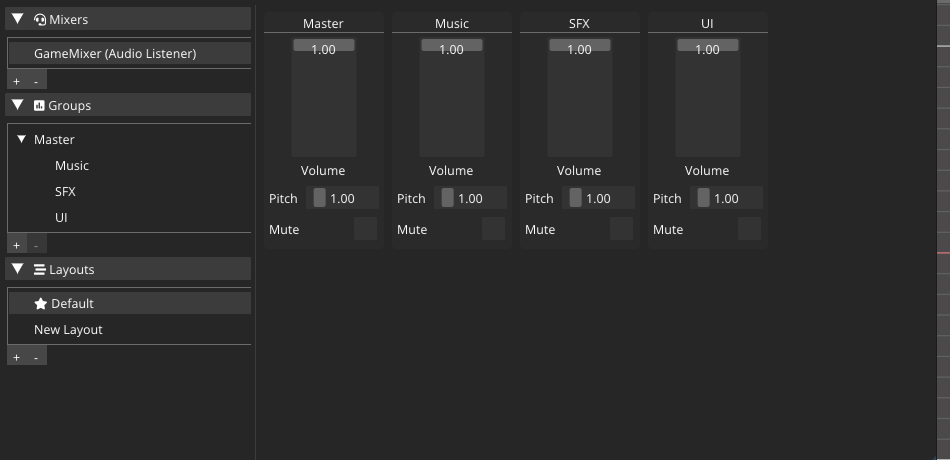
- Every mixer starts with a Master group; add children like
Music,SFX,UI,Voicefrom the context menu. - Each group has Volume, Pitch, Muted and Use Effects.
- Volumes multiply down the tree: a sound in
SFXplays atmaster.volume × sfx.volume × source.volume. - Point each AudioSource's Audio Mixer Group field at the right group, and your options menu suddenly needs three sliders instead of three hundred.
Controlling groups from script
Mixer groups are assets — reference them from a script with a serialized handle field, assign them in the Inspector, and change them live. This is the Sandbox project's audio controller, trimmed:
using namespace CometEngine;
using namespace CometEngine::Audio;

class AudioOptions : CometBehaviour
{
    [Serialize] AudioMixerGroup master;
    [Serialize] AudioMixerGroup music;
    [Serialize] AudioMixerGroup effects;

    void Update()
    {
        if (Input::GetKeyDown(KeyCode::M))
        {
            master.muted = !master.muted;       // mute everything
        }
        if (Input::GetKeyDown(KeyCode::NUM_1))
        {
            music.volume = 0.25F;               // duck the music
        }
        if (Input::GetKeyDown(KeyCode::NUM_2))
        {
            effects.volume = 1.0F;
        }
    }
}
[!TIP]
[Serialize]exposes a handle field in the Inspector so you can drag the mixer group (a sub-resource of the mixer asset) straight into it.
Layouts: mixer snapshots
A mixer can store multiple layouts — complete snapshots of every group's settings. Author a Default layout and a Underwater layout (low-passed, muffled volumes), then switch at runtime:
using namespace CometEngine;
using namespace CometEngine::Audio;

class WaterZone : CometBehaviour
{
    [Serialize] AudioMixer gameMixer;

    void EnterWater()
    {
        array<AudioMixerLayout> layouts = gameMixer.GetLayouts();
        for (uint i = 0; i < layouts.length(); i++)
        {
            if (!layouts[i].isDefault)
            {
                layouts[i].Activate();   // apply the snapshot
            }
        }
    }
}
The layout marked Is Default is applied automatically when the scene loads.
Audio effects
Four DSP effects ship as behaviours under Add Behaviour → Audio/Effects: AudioEffectDistortion, AudioEffectEcho, AudioEffectFlange and AudioEffectReverb.
- On a source entity, the effect processes that source's output.
- On the listener entity, it processes everything the listener hears — instant cave reverb.
Per-source opt-outs: ignoreEffects (skip effects on the source's own entity) and ignoreListenerEffects (skip the listener's).
Global playback & devices
AudioSystem also handles app-wide concerns — pausing the whole mix for your pause menu, and output-device selection for a settings screen:
AudioSystem::SetMasterVolume(0.5F);
AudioSystem::PauseAll();     // pause menu opened
AudioSystem::ResumeAll();    // and closed
AudioSystem::StopAll();

// Offer an output-device picker:
array<string> devices = AudioSystem::GetOutputDevices();
AudioSystem::SetCurrentOutputDevice(devices[0]);
Hot-plugging is signalled through AudioSystem delegates (onOutputDeviceConnected, onOutputDeviceDisconnected) so your settings UI can refresh itself.
Where to go next
Give your buttons click sounds in the UI tutorial, or trigger footsteps from animation events in Animation & the Animator.