Dynamic Content & Asset Groups
Not every asset should be glued into your scenes. A boss you only fight in world 3, a pack of localized voice lines, the art for a DLC island, a title screen you swap for a seasonal event — these are things you want to load on demand, by name, at runtime, and sometimes download after the game has shipped.
Comet's Content System is how you do that. You put assets into content groups, address them by a short path, and load them from a script whenever you want — the exact same call works in the editor, in a packed build, and against content sitting on a CDN.
The mental model
Three ideas carry the whole system:
- Address — an asset's identity for loading. It's the asset's path relative to
Assets/, without the extension:Assets/Textures/Enemies/orc.pngbecomes the addressTextures/Enemies/orc. Stable, human-readable, project-unique. - Content group — a named bucket that decides how an asset ships and loads. Every asset either belongs to a group or it doesn't.
- The rule that ties them together — an asset is only addressable if it has a content group. No group, no address: you can't load it by name, and it doesn't ship on its own.
Creating groups
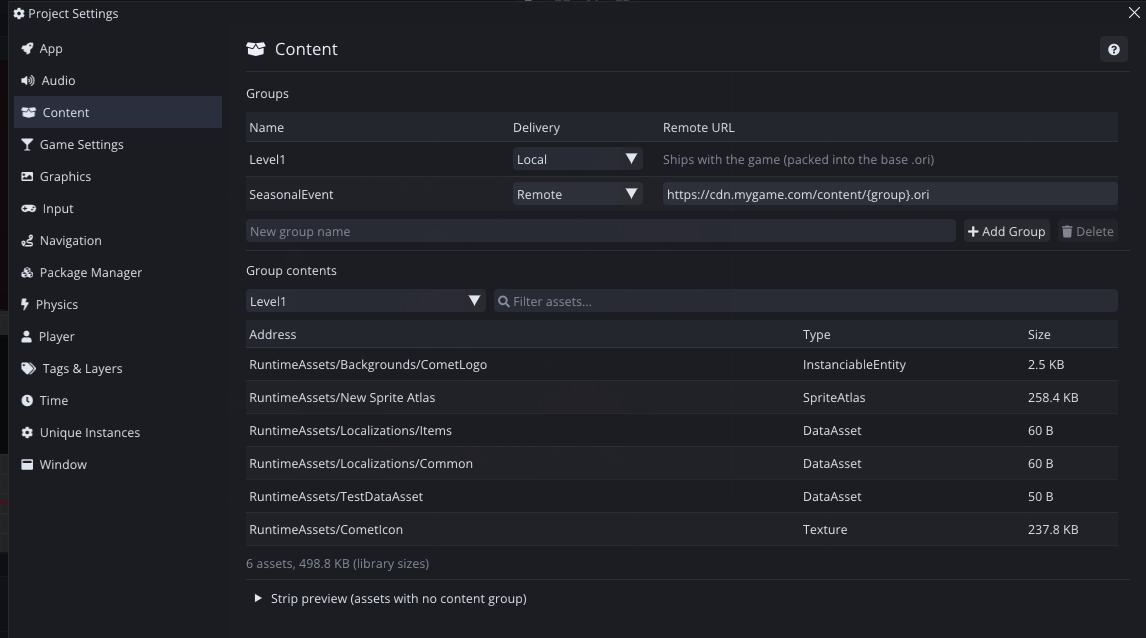
Open Project Settings → Content. The Groups table is where you author them — you decide what groups exist; the engine never invents one for you.
Type a name into the field at the bottom and press Add Group. Each group has:
| Column | Meaning |
|---|---|
| Name | The group's identity. You'll refer to it from the folder inspector and from scripts. |
| Delivery | Local (ships inside the game) or Remote (downloaded from your CDN — see Remote content). |
| Remote URL | Only for Remote groups: the URL template the pack downloads from. |
Right-click a row to Remove it, or select it and press Delete. Removing a group clears every folder and asset that pointed at it (they fall back to Inherit).
Below the table, Group contents shows exactly which assets currently resolve into the selected group, with their addresses and sizes — your ground truth for "what's actually in here". The Strip preview at the bottom lists assets that have no group: these ship only if a build scene references them, and they are never loadable by address.
Assigning content to a group
You don't add assets to a group from the group list — you assign them from their own Inspector. Select a folder (or a single asset) in the Project panel and look at the Content section at the top of the Inspector.
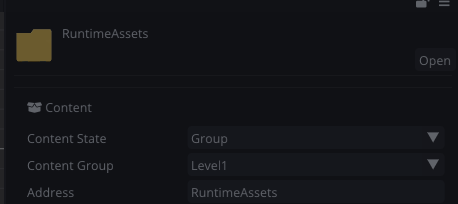
The Content State dropdown is the heart of it:
| State | What it does |
|---|---|
| Inherit | Resolve through the folder hierarchy — this item takes whatever group its nearest grouped ancestor folder has. This is the default. |
| Group | Assign an explicit Content Group (pick it from the dropdown that appears). Everything inside a grouped folder inherits it. |
| Excluded | Break inheritance — this subtree or asset belongs to no group, even under a grouped parent. Use it to carve a hole in an otherwise-grouped folder. |
Assign a folder to a group and every asset inside it (and every subfolder, recursively) comes along — the usual way to work. Assign a single asset to override just that one.
Addresses and overrides
By default an asset's address is its path without the extension, and its group's assignment doesn't change that. When you select a grouped folder or asset, the Content section shows its resolved Address — the string you'll pass to Assets::Load.
Sometimes you want a cleaner or more stable address than the folder layout gives you. Edit the Address field to override it:
- On a single asset, the override replaces its whole address.
- On a folder, the override replaces that folder's prefix in every child's derived address — move or rename the folder later and the addresses your code uses don't have to change.
Press the revert arrow to drop an override and go back to the derived path.
Loading from code
Everything comes through the Assets namespace. The address is the Assets/-relative path without extension; the type is optional and filters the result.
using namespace CometEngine;

class BossSpawner : CometBehaviour
{
    void Start()
    {
        // Synchronous: blocks until the asset is ready, then pins it resident.
        Texture2D portrait = cast<Texture2D>(
            Assets::Load("Bosses/Dragon/portrait", ResourceType::TEXTURE));

        // A whole InstanciableEntity by address.
        Entity boss = Assets::LoadEntity("Bosses/Dragon/Dragon");

        // ... use them ...

        // Release the pins when you're done so they can unload.
        Assets::Unload(portrait);
        Assets::UnloadEntity(boss);
    }
}
For anything big, load asynchronously so you never hitch the frame. LoadAsync returns a ResourceAsyncOperation you can poll — or yield on directly inside a coroutine:
ResourceAsyncOperation op = Assets::LoadAsync("Levels/Ice/tileset", ResourceType::SPRITE_ATLAS);
while (!op.isDone)
{
    loadingBar.value = op.progress;   // 0.0 … 1.0
    yield;                            // resume next frame
}
SpriteAtlas atlas = cast<SpriteAtlas>(op.resource);
You can also discover content without loading it. Assets::Find returns a lightweight handle, FindAssets enumerates a folder address, and GetGroupAssets lists a whole group — none of them touch disk until you actually Load:
array<AssetHandle>@ enemies = Assets::FindAssets("Enemies", ResourceType::INSTANCIABLE_ENTITY);
AssetHandle random = enemies[rand() % enemies.length()];
Entity spawned = cast<Entity>(Assets::Load(random));
There's also Assets::LoadScene(address) / LoadSceneAsync to bring in a whole scene by address, and Assets::UnloadAll() to drop every runtime pin at once.
AssetHandle fields: soft references in the Inspector
A field typed as a concrete resource (Texture2D icon;) is a hard reference — the engine loads it together with whatever owns it. A field typed as Assets::AssetHandle is a soft reference: it names an asset but stays dormant until you call Load on it.
using namespace CometEngine;

class RewardChest : CometBehaviour
{
    Assets::AssetHandle rewardIcon;   // shows an asset picker in the Inspector

    void Open()
    {
        if (rewardIcon.IsSet())
        {
            Texture2D icon = cast<Texture2D>(Assets::Load(rewardIcon));
            // ... show it ...
        }
    }
}
The strip rule
The core promise: only grouped assets ship and are addressable. Concretely, at build time:
- An asset with an effective group ships and can be loaded by address.
- An asset without a group that is referenced by a build scene still ships (as a hard dependency of that scene) — but it is not addressable; you can only reach it through the scene.
- An asset without a group that nothing references is stripped entirely.
Because the editor enforces the exact same rule, a Assets::Load that would fail in the shipped game also fails in play mode — you find out immediately, not after exporting.
Local vs Remote: how a group ships
A group's Delivery decides where its bytes live in the build.
Local (the default) — the group folds into your game's base content: the single .ori pack, the embedded-in-executable pack, or the loose content tree, depending on your Content Packaging (see Exporting Builds & Shipping Patches). Local content is always present, so loading it is instant and needs no setup. Because mounting is memory-mapped, a bigger pack costs nothing at load time — there's no downside to shipping content locally.
Remote — the group is packed into its own .ori file, placed in a remote_content/ folder next to your build instead of inside it. You upload that file to your own server/CDN; the game downloads it on demand. This is how you ship DLC, seasonal content, or anything you'd rather not force into the initial install.
Remote content: downloadable groups
Give a group Remote delivery and set its Remote URL — a template with two optional placeholders:
{group}→ the group's name.{version}→ the content version.
For example https://cdn.mygame.com/content/{group}.ori. When you export, Comet writes remote_content/<group>.ori and a tiny <group>.manifest beside it. Upload both to the URL you configured.
At runtime, nothing downloads until you ask:
using namespace CometEngine;

class DlcLoader : CometBehaviour
{
    bool started = false;

    void Update()
    {
        if (!started)
        {
            started = true;
            Assets::EnsureGroup("SeasonalEvent");   // begins the download
        }

        if (Assets::IsGroupReady("SeasonalEvent"))
        {
            // Safe to load anything in the group now.
            Entity tree = Assets::LoadEntity("SeasonalEvent/Decorations/Tree");
            started = false;   // (example only — don't re-ensure every frame in real code)
        }
        else
        {
            float total = float(Assets::GetGroupDownloadSize("SeasonalEvent"));
            float got   = float(Assets::GetGroupDownloadedBytes("SeasonalEvent"));
            progressBar.value = total > 0 ? got / total : 0.0F;
        }
    }
}
EnsureGroup downloads the pack (resumable and checksum-verified), caches it next to the game, and mounts it. IsGroupReady tells you when its assets are loadable; GetGroupDownloadSize / GetGroupDownloadedBytes drive a progress bar. ReleaseGroup unmounts a remote group's cached pack when you're done — the cache stays, so ensuring it again doesn't re-download. For a Local group all of these are no-ops that report "ready" immediately, so the same code path works whether an asset ships local or remote.
Updating remote content without a game update
This is the real payoff of remote groups. The cached pack is checked against the manifest once per session: when you re-export the group and upload the new .ori + .manifest pair, the game notices the change on the next EnsureGroup, discards the stale cache and downloads the current one — no game update required. When the CDN is unreachable, the cached pack keeps working offline. (Remember to upload the new .manifest alongside the .ori; the manifest is the version signal.)
Automating the setup from editor scripts
If you generate content or want to script your project's setup, the CometEditor::AssetDataBase API mirrors everything the inspectors do:
using namespace CometEditor;

AssetDataBase::CreateContentGroup("SeasonalEvent");
AssetDataBase::SetContentGroup("SeasonalEvent/Decorations", "SeasonalEvent");  // by folder path
AssetDataBase::SetContentState(myTexture, CometEditor::ContentState::EXCLUDED); // by Resource@
string group = AssetDataBase::GetEffectiveContentGroup("Bosses/Dragon/portrait.png");
Paths take folders (no trailing slash) or files — the file extension is optional, and an ambiguous extensionless name does nothing and logs a note asking you to include the extension.
Where to go next
- Content packaging, single-
.orivs embedded vs loose, and shipping incremental patches (which also work over HTTP) are covered in Exporting Builds & Shipping Patches. - Loading sprites and atlases by address is shown in context in Sprite Rendering; the same applies to Audio & Mixers and every other resource type.