Video Playback
Cutscenes, animated backgrounds, in-game screens — the Video Player decodes WebM video (VP8/VP9 with Opus/Vorbis audio) and renders it onto a render texture, a camera plane, or straight into your scene, with the audio routed through your mixer.
Importing a video
Drop a .webm file into your project's Assets folder and it imports as a Video Clip resource, exposing duration, frameRate, width and height.
[!IMPORTANT] Comet plays WebM only (VP8/VP9 video, Opus/Vorbis audio) — not MP4/MOV/AVI. Re-encode other formats to WebM first (e.g. with
ffmpeg -i input.mp4 output.webm). Decoding is software (libvpx), so keep large videos to a sensible resolution.
The Video Player behaviour
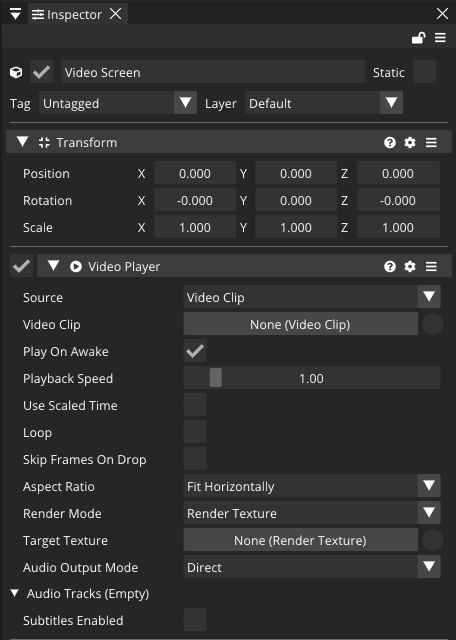
Add a Video Player (from Add Behaviour) and configure:
| Field | Meaning |
|---|---|
| Source | Video Clip (a resource) or Url (a file path / URL string). |
| Video Clip | The clip to play, when Source is Video Clip. |
| Play On Awake | Start automatically. |
| Playback Speed | 0–10× speed. |
| Loop | Restart on end (gapless). |
| Skip Frames On Drop | Drop frames to stay in sync if decoding can't keep up. |
| Aspect Ratio | Fit Horizontally (default), Fit Inside, Stretch, ... |
| Render Mode | Render Texture (default), Camera Near Plane or Camera Far Plane. |
| Target Texture | The RenderTexture frames are written to (Render Texture mode). |
| Audio Output Mode | Direct (per-track volume/mute), Audio Source (route through a mixer) or None. |
Where the picture goes
- Render Texture — frames are written into a
RenderTextureasset. Display it anywhere a texture works: aTextureRectRenderer, a UIImage, or a material. This is the most flexible mode. - Camera Near / Far Plane — the video draws directly on a
Camera's near or far plane with an adjustable Alpha, perfect for full-screen backgrounds or overlays.
Where the sound goes
Direct gives you per-track volume and mute. Audio Source routes each audio track through an assigned AudioSource, so the video's sound obeys your mixer groups — duck it under a Music bus, apply reverb, whatever.
Controlling playback from AngelScript
This is the Sandbox project's video controller, verbatim — space to pause/resume, arrows to scrub:
using namespace CometEngine;
using namespace CometEngine::Video;

class VideoController : CometBehaviour
{
    float stepToMove = 0.5F;
    private VideoPlayer videoPlayer;

    void Start()
    {
        videoPlayer = VideoPlayer::Get(entity);
    }

    void Update()
    {
        if (Input::GetKeyDown(KeyCode::SPACE))
        {
            if (videoPlayer.isPaused) { videoPlayer.Play(); }
            else { videoPlayer.Pause(); }
        }
        if (Input::GetKeyDown(KeyCode::LEFT))
        {
            videoPlayer.Seek(videoPlayer.currentTime - stepToMove);
        }
        if (Input::GetKeyDown(KeyCode::RIGHT))
        {
            videoPlayer.Seek(videoPlayer.currentTime + stepToMove);
        }
    }
}
The API mirrors the inspector: Play(), Pause(), Stop(), Seek(seconds), Step() (advance one frame), plus isPlaying, isPaused, currentTime, duration, frameRate. Audio tracks are toggled with SetAudioTrackEnabled(i, on) and SetAudioTrackDirectVolume(i, v).
A skippable cutscene
using namespace CometEngine;
using namespace CometEngine::Video;
using namespace CometEngine::SceneManagement;

class Cutscene : CometBehaviour
{
    private VideoPlayer player;

    void Start()
    {
        player = VideoPlayer::Get(entity);
        player.loop = false;
        player.Play();
    }

    void Update()
    {
        // Advance to gameplay when the clip ends or the player skips.
        bool finished = !player.isPlaying && !player.isPaused && player.currentTime >= player.duration - 0.05F;
        if (finished || Input::GetKeyDown(KeyCode::ESCAPE))
        {
            SceneManager::LoadScene("Level1");
        }
    }
}
[!NOTE] Web builds depend on the browser's WebM codec support (VP9 is the safest bet). There are no native sockets or threads on web, but video playback itself works — just profile large clips.
Where to go next
Show your video on a render texture in the UI, route its audio through a mixer group, or play it as an intro before your first scene loads.