Visual Scripting
Sometimes you want a whole behaviour without opening a text editor. Comet's Visual Scripting lets you build a complete script as a node graph — events, branches, loops, variables, your own functions — and it compiles to a readable AngelScript class behind the scenes. That is the important part: a visual script is not interpreted at runtime. It becomes a real script, so it attaches to entities, exposes its variables in the inspector. Anything you can reach in code — every engine type, every one of your own classes — you can reach here.
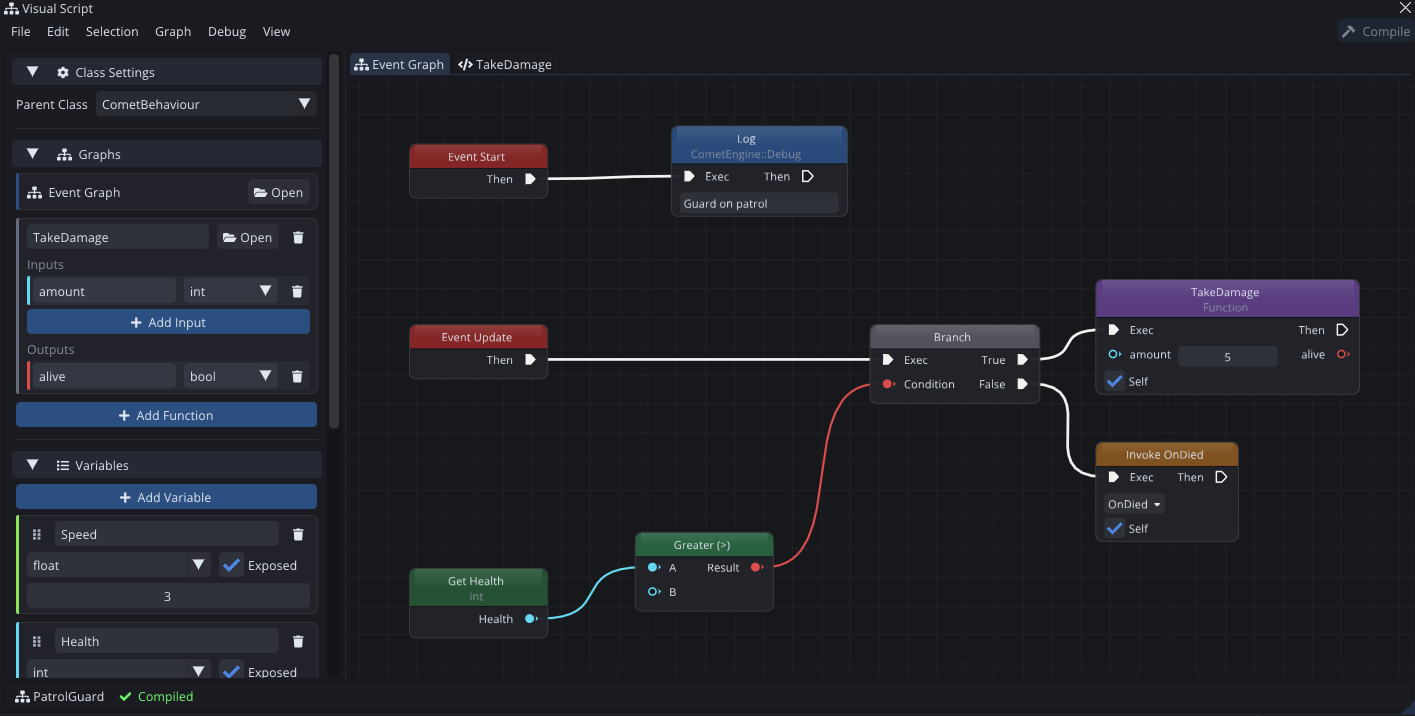
Creating a visual script
In the Project panel, Create → Script → Visual Script. Double-click the new asset to open the Visual Script editor.
Every visual script has a base class — the archetype it extends — which you pick from the sidebar. CometBehaviour is the usual choice, but you can pick any script archetype, including one of your own script classes. The base class decides two things: the event callbacks available to you, and whether the script can be attached to an entity.
Blackboard sidebar
The left sidebar is where you declare everything the graph owns (variables, events, functions...).
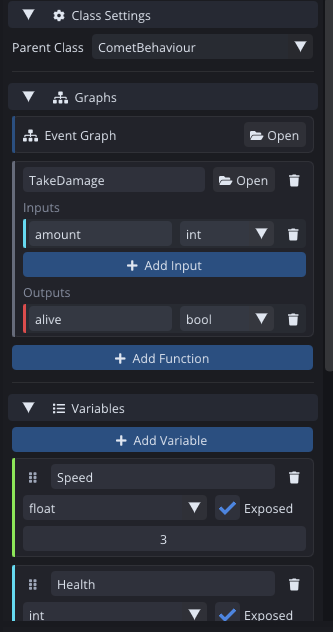
- Variables — the graph's state. Give each a name and type; tick Exposed to make it show up (and serialize) in the inspector, exactly like a
[Serialize]field. - Functions — reusable sub-graphs (more below).
- Event Dispatchers — events your script fires so other scripts can listen.
Drag a variable onto the canvas to drop a Get/Set node.
Events: reacting and firing
There are two sides to events.
Event callbacks come from your base class. Open the Create Node palette and the events your archetype receives are right there — Start, Update, collision and trigger callbacks, pointer and animation events, and so on. Each one is an entry node with an execution output; wire your logic off it and it runs when the engine calls that callback.
Event dispatchers are events your script fires. Add one in the sidebar (optionally with a payload type), then drag it onto the canvas to Invoke it. Other scripts — visual or written — subscribe to it as a normal CometEvent. You can also Bind a parameterless method of your graph as a runtime listener to any CometEvent value, including one you fetched from another object.
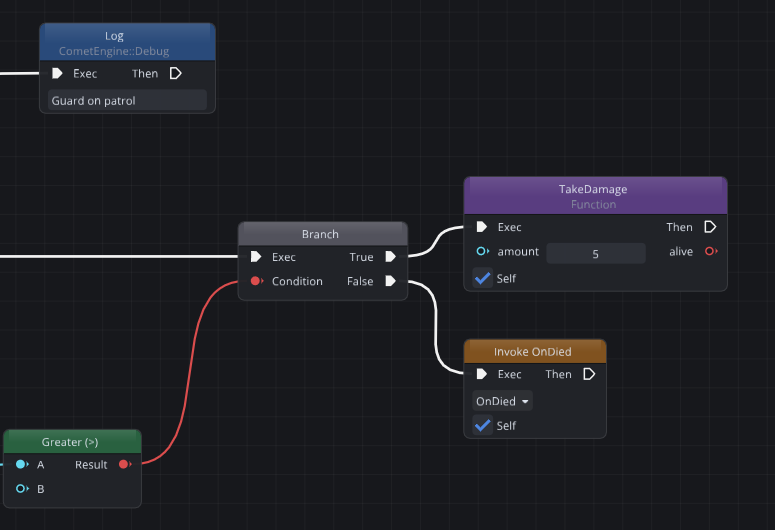
Functions are sub-graphs
A function is its own little graph with typed inputs and an optional output, shown as a tab next to the Event Graph. Build it once, then drop a call to it anywhere in your event graph — the call node grows a pin for each input and the return value (see the purple TakeDamage node above). It keeps big graphs readable and lets you reuse logic without copy-pasting nodes.
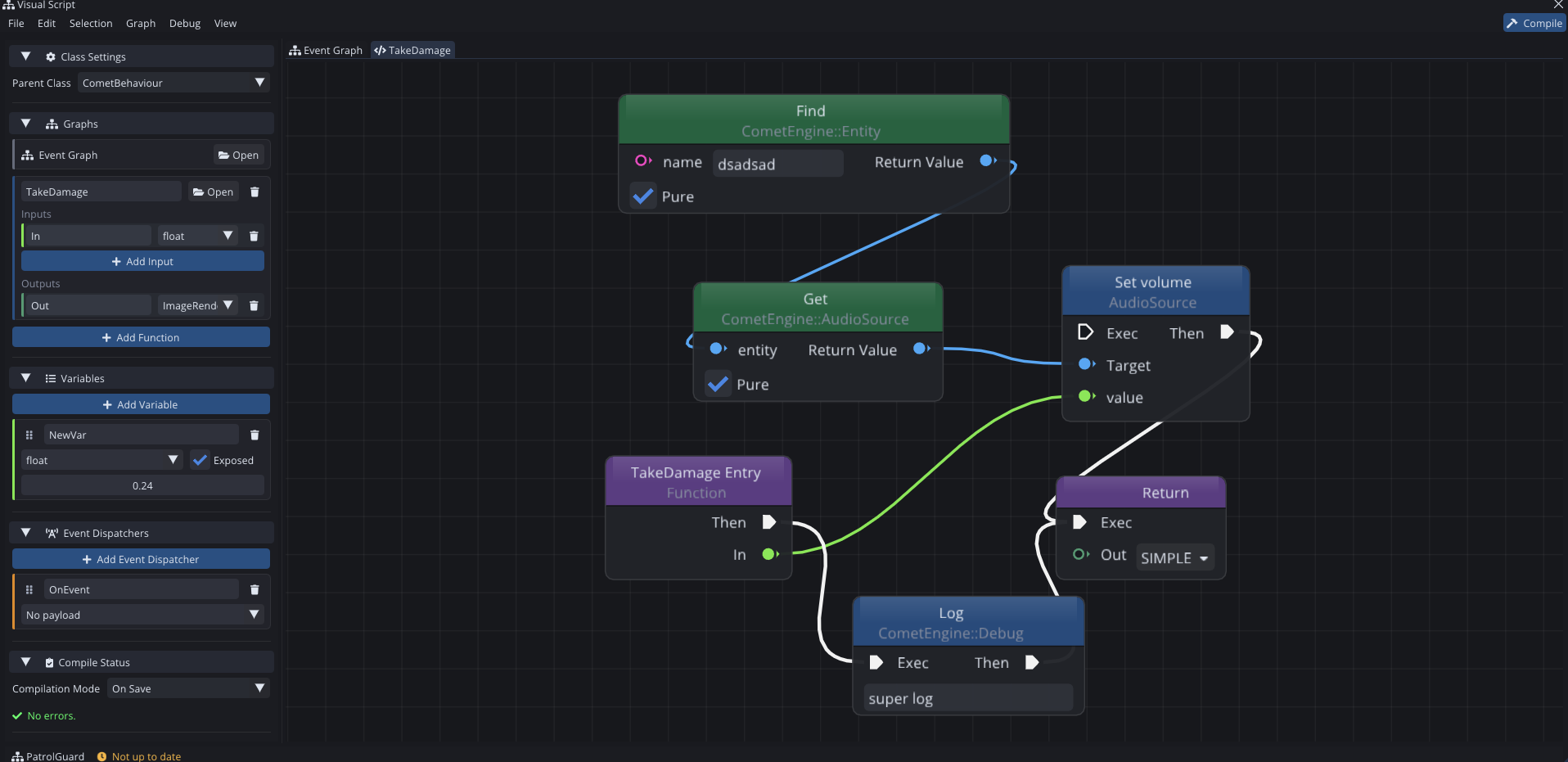
Double-click a function-call node's header to jump straight into that function's tab.
Reaching the whole engine — and your own scripts
This is where visual scripting stops being a toy. The Create Node palette (right-click the canvas) is built by reflecting the entire scripting API, so everything code can touch is a node:
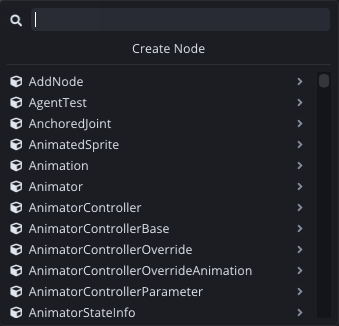
- Engine API — every global function, and every method, property, constructor and enum of every bound type (
Entity,Transform,Input,Physics,Audio, …). Get a component, move a transform, play a sound, read the mouse — all as nodes. - Your own scripts — call the public methods of your AngelScript classes and read or write their public fields, the same way you would in code. Getting a reference to another object of your own type and driving it from a graph just works.
SelfandSelf Entity— the running instance, and (forCometBehaviours) the entity it's attached to, ready to feed into any call.
Flow control
The palette also carries the full set of flow nodes you'd expect from a code editor: Branch (if/else), Sequence, For, For Each and While loops with Break/Continue, a Switch on integers or enums, Gate, Do Once, Flip Flop, and a latent Delay built on coroutines.
Running it
A visual script is a script, so you use it like one:
- Pick your compile mode in the Compile Status section — On Save (compile when you save; no lag while editing) or On Edit (recompile live).
- Drop the visual script on an entity — drag it into the inspector or use Add Behaviour — and its Exposed variables appear right there to tweak per-instance.
- Press play. Your
Start/Update/callback logic runs with zero interpreter overhead, because it compiled to a normal class.
In play mode the editor lights up executed nodes live, lets you hover an output pin to watch its last value, and accepts breakpoints that pause on a node through the in-editor debugger.
Where to go next
Visual scripting is glue for the whole engine — fire a graph from an input action, have it drive an animator or move something along a Bézier path, or reach for custom graph nodes when you'd rather author reusable data-flow nodes instead of whole behaviours.